Creating Stream Overlays That Don’t Annoy Your Viewers
21 May 2026
Let’s be honest—stream overlays can make or break the vibe of your content. We've all clicked on a stream only to be bombarded with flashing alerts, cluttered layouts, and obtrusive webcams that cover half the gameplay. Yeah... not a great first impression. If you’re serious about growing your stream without driving your viewers away, then it’s time to talk about creating stream overlays that don’t annoy your viewers.
This isn’t about getting the flashiest look or jamming every possible widget onto your screen. It’s about crafting a clean, viewer-friendly experience that highlights your personality and your gameplay. Let’s dive in and talk about how to do just that.
Why Overlays Even Matter
Before we dive into the dos and don’ts, let’s get this straight—your stream overlay isn’t just decor. It’s part of your virtual stage. It sets the tone, communicates your brand, and helps guide the viewer’s eyes during the stream.But just like in theater, too many props on stage? That’s just distracting.
A good overlay complements your content. A bad one? Well, it's like background noise that doesn't shut up.
Step 1: Keep It Clean, Keep It Simple
This is the golden rule. Simple overlays are often the most effective. Your viewers came to watch gameplay, interact with you, and maybe catch a funny fail or two. They didn’t come to decode a visual maze of panels and animations.Do this instead:
- Use minimal elements: webcam frame, basic panels (like recent follower or donation), and a subtle border.
- Stick to consistent colors and fonts that match your branding.
- Leave enough empty space so your screen doesn’t look crowded.
It’s like interior design—sometimes less furniture actually makes the room feel bigger, right?
Step 2: Mind the Gameplay
Your game is the star of the show. So don’t let your overlay block important HUD elements. There’s nothing more frustrating than watching a streamer with their follower goal bar covering the minimap.How to avoid this:
- Know your game’s UI layout and build your overlay around it.
- Test different layouts in your OBS or Streamlabs before going live.
- Ask your viewers for feedback—they’ll tell you if something’s in the way.
You wouldn’t put a big sticker on your TV while watching a movie, right? Same logic.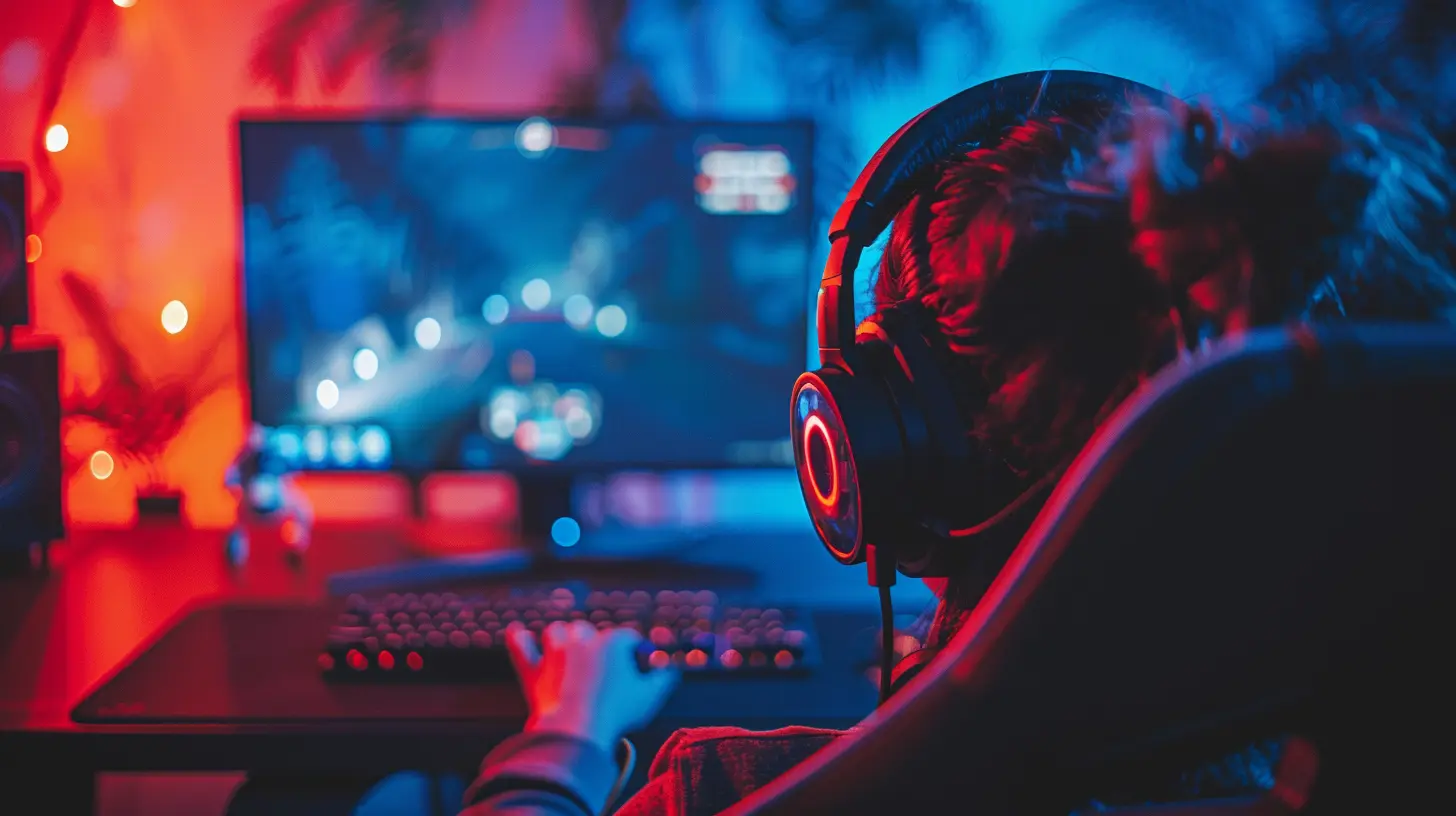
Step 3: Choose Fonts That Are Actually Readable
Cool fonts might look great on a banner, but squiggly or ultra-techy text styles can be a nightmare to read. Especially on mobile.Best practices for fonts:
- Use clean, sans-serif fonts (like Montserrat, Open Sans, or Roboto).
- Keep font sizes large enough to read on all devices.
- Limit yourself to two fonts max—one for headlines, one for small info.
Think of font choice like speaking clearly—you wouldn’t mumble on stream, so don’t let your overlay mumble either.
Step 4: Color Choices Matter—A Lot
Colors can seriously affect how relaxing or chaotic your overlay feels. Overly vibrant, contrasting colors can feel loud and jarring.Here’s how to get it right:
- Stick to a 2-3 color palette that matches your overall theme.
- Use contrast wisely—make text stand out without straining the eyes.
- Be color-blind friendly by avoiding hard-to-distinguish color combos (like red-green).
Your overlay should feel like a chill background track—not a booming club remix.
Step 5: Avoid Overusing Animations and Effects
We get it—animations can be fun. But when every alert blasts on-screen with neon flames and a dubstep drop, it gets old fast.Subtlety is your friend:
- Use clean fade-ins or slide-ins for alerts.
- Keep animations short—2-3 seconds max.
- Don't stack too many animated elements at once.
Think of it like seasoning a dish. A little spice brings the flavor. A whole jar of chili flakes? That’s a recipe for disaster.
Step 6: Make Use of Modular Overlay Designs
Modular overlays let you mix and match elements depending on what you’re doing—whether it’s gaming, chatting, or reacting to content.Why it helps? Flexibility.
- Use a full webcam layout for Just Chatting, and a corner cam for gameplay.
- Turn off alerts during serious or story-driven moments.
- Drop panels entirely if you just want to showcase the gameplay.
It’s like having different outfits for different occasions. You wouldn’t wear a tuxedo to the gym, right?
Step 7: Test Your Overlay Before Going Live
This step? Non-negotiable.Always preview your stream layout from a viewer’s perspective before you hit that 'Go Live' button. Stream to an alt Twitch account or record locally and play it back.
Ask yourself:
- Can I see all parts of the game clearly?
- Is the text readable?
- Do the alerts interrupt the flow?
- Does anything feel “off” or distracting?
Also, pop open your stream on mobile if you can. Half your viewers are probably watching from their phones. Make sure it looks just as good there.
Step 8: Brand Without Going Overboard
Branding matters, especially if you’re trying to stand out. It gives your stream personality and makes your content recognizable.But there’s a fine line between branding and self-promotion overload.
Here’s how to do it tastefully:
- Add a small static logo or watermark in a corner.
- Use custom alert sounds or icons that reflect your vibe.
- Stick your social handles somewhere on-screen—but don’t make them the focal point.
Think of branding like a signature in the corner of a painting. It’s there because it’s yours—but it doesn’t cover the whole canvas.
Step 9: Prioritize Viewer Interaction
One of the big reasons people prefer livestreams over YouTube content is interaction. Don’t let your overlay get in the way of that.Make room for:
- Chat box overlays (especially useful for VODs and replays).
- Alert panels that recognize subs, raids, and donations—but space them properly.
- A clear mic and camera layout for eye contact and reactions.
If your viewers feel like they’re just watching a heavily-produced video, they may not stick around. Let them be part of the show.
Step 10: Keep Improving Based on Feedback
Here's the real secret sauce: listen to your community.Ask your viewers (in chat, on Discord, or in polls):
- “Is this overlay too much?”
- “Would you rather see the game full-screen?”
- “Should I shrink the cam a bit?”
Your audience will appreciate that you care about their viewing experience. Plus, your stream evolves into something that feels co-created by the community.
It’s like being in a band—you might be the frontman, but the fans help shape your sound.
Bonus Tips: Stream Overlay Tools and Templates
Feeling overwhelmed starting from scratch? Don’t worry—you don’t have to be a graphic designer to make awesome overlays.Here are a few rookie-friendly platforms to check out:
- Streamlabs – Tons of free and premium overlay themes.
- Nerd or Die – Great for modern, modular designs.
- OWN3D.tv – Polished, plug-and-play overlay packs.
- Canva – Perfect for creating text panels and social media banners with zero design skills.
Just remember to tweak templates to fit your unique style. Don’t be just another copy-paste streamer.
Final Thoughts
A good stream overlay should feel like a well-tailored outfit—it should fit your content, match your personality, and never distract from your main act: you and your gameplay.By simplifying your design, thinking like your viewers, and focusing on clarity over complexity, you’ll create an environment that keeps people watching (and more importantly, coming back).
So next time you’re adding that extra animated widget or flashy alert, just ask yourself: “Does this help—or hurt—the viewing experience?”
Chances are, if it feels like too much, it probably is.
all images in this post were generated using AI tools
Category:
Livestreaming GamesAuthor:

Kaitlyn Pace
Discussion
rate this article
2 comments
Vesperos Middleton
Why did the stream overlay go to therapy? Because it had too many issues with boundaries! Seriously though, finding that balance between eye-catching and distraction-free can be tough. It's like trying to find a unicorn in a game of hide and seek... good luck, streamers! Keep it fun and fresh!
July 2, 2026 at 4:03 AM
Kaitlyn Pace
Great point! Stream overlays really need that balance. It's tricky to grab attention without overwhelming. Thanks for the laugh and the reminder!
Heath Hill
What design tips make overlays engaging?
May 22, 2026 at 4:08 AM
Kaitlyn Pace
Keep it simple and uncluttered. Use contrasting colors to enhance visibility, and choose fonts that are easy to read. Make sure overlays complement the content without overshadowing it. Balance is key.