How to Handle Technical Issues Like a Pro During Streams
25 July 2026
Streaming is a blast—hanging out with your community, playing your favorite games, and sharing the vibes. But there’s one mood-killer that every streamer dreads: technical issues. Whether it's your mic going silent mid-sentence, your stream dropping frames, or your game crashing, tech problems can turn a fun stream into a full-blown frustration fest real quick.
But don’t worry—we're not here to let streaming gremlins ruin your day. In this guide, I'll break down how to handle technical issues during your stream like an absolute pro. We’ll chat about what to do before you go live, how to stay cool when stuff hits the fan, and how to bounce back stronger than ever.
Ready? Let’s beat those pesky gremlins at their own game.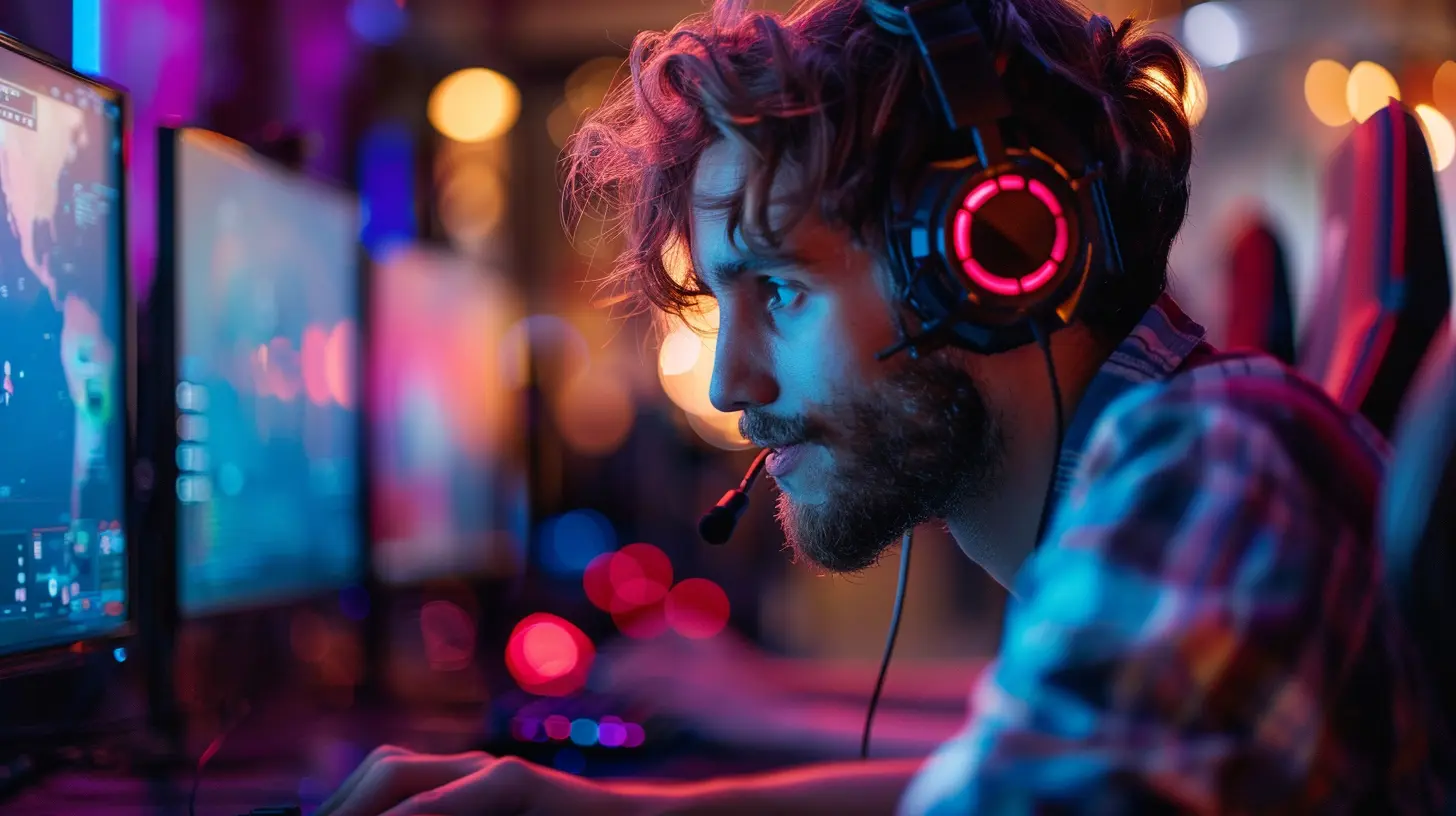
? What Kind of Technical Issues Are We Talking About?
Before we can fix stuff, let’s figure out what kind of technical hiccups tend to pop up during streams. Here are the usual suspects:- ? Audio issues (mic not working, weird background noise, sync problems)
- ? Dropped frames due to poor internet connection
- ? Game crashes or freezes mid-stream
- ? Webcam issues (camera not being detected or laggy video)
- ?️ Software glitches (OBS or Streamlabs crashing or freezing)
- ❌ Alerts not showing up properly
- ? No sound on stream (but you can hear it fine)
Sound familiar? Yeah, it happens to the best of us. But there’s a way to prepare and recover like a boss.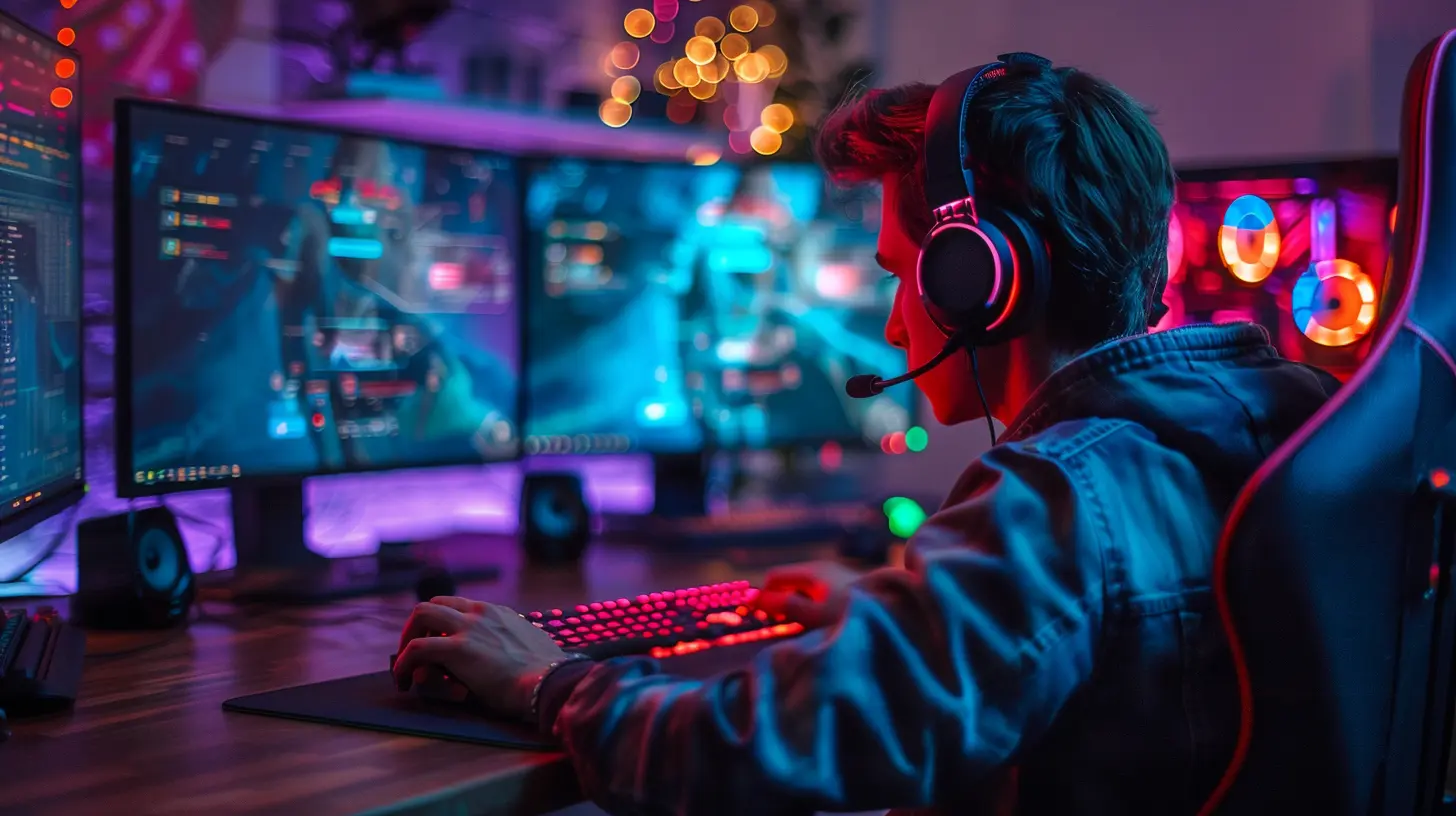
? Step One: Preparation Is Your Superpower
Think of prepping your stream like suiting up for battle. You want to check everything before you go live, right?? Do a Pre-Stream Tech Check
Before every stream, make it a habit to run through a quick checklist:- ? Is your mic working and at the right volume?
- ? Can you hear your game/music clearly?
- ? Check your internet speeds (you want at least 6 Mbps upload speed for a solid 1080p stream)
- ? Is your webcam showing the right angle and lighting?
- ? Test your alerts and overlays
Use the “Start Recording” function in OBS or Streamlabs to preview your stream experience. It’s like doing a dress rehearsal before the big show.
? Keep Backup Gear (If You Can)
If you’re streaming regularly, consider keeping a few backup accessories:- A spare headset or mic
- An extra HDMI cable
- A backup webcam (even your phone works in a pinch with apps like DroidCam or EpocCam)
It’s way easier to swap in a new part than to fuss with a broken one mid-stream.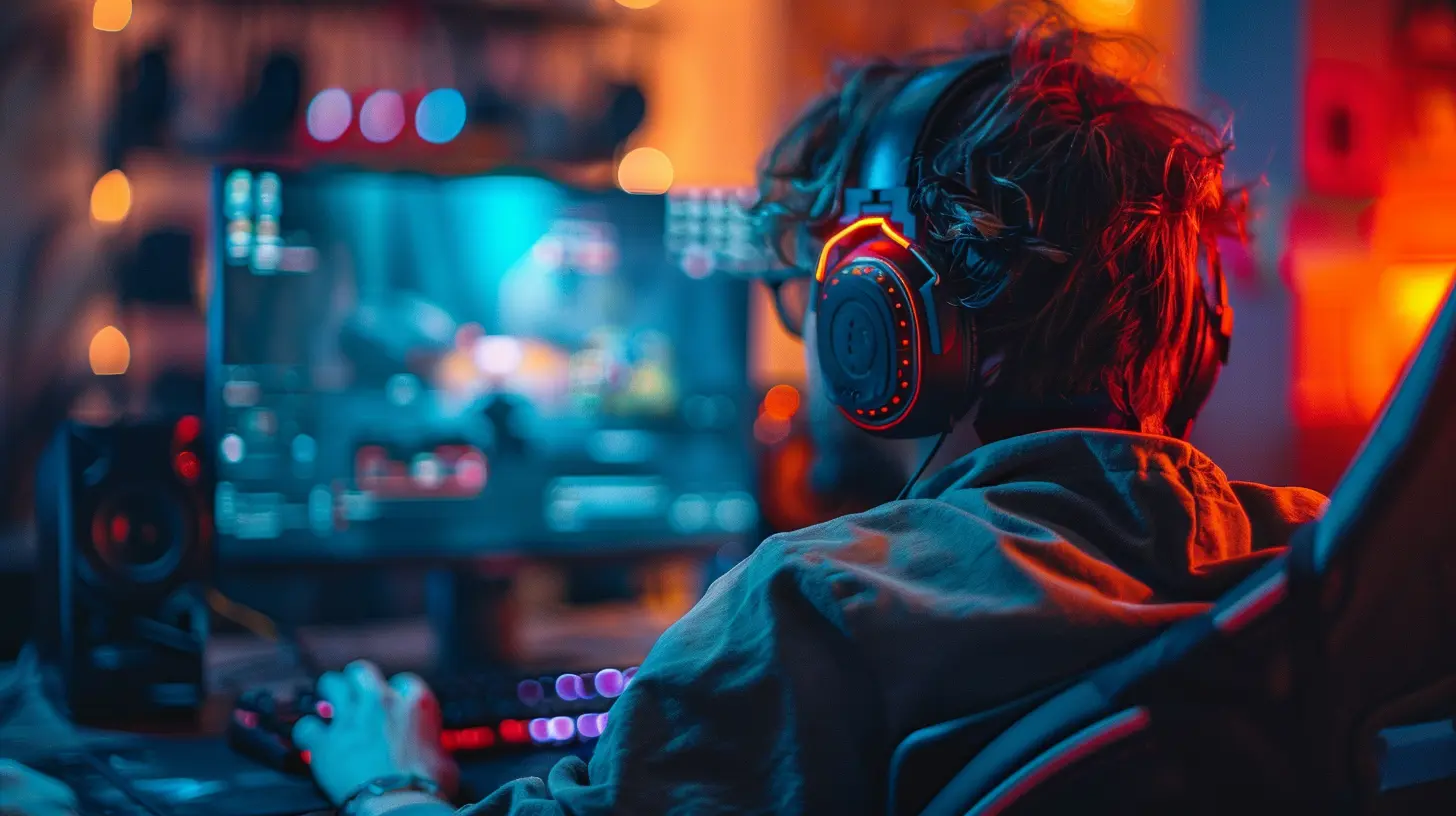
?♂️ Step Two: Stay Calm When Things Go South
Alright. You’re live, and suddenly… your audio’s gone. Or, worse, your stream crashes.First rule? Don’t panic.
? Keep It Cool and Communicate
Your chat isn’t expecting perfection. In fact, most seasoned viewers understand that tech fails happen. Talk to them:> “Looks like we’re having some audio issues—give me a sec to fix it!”
Being transparent keeps your stream human and authentic. Plus, your community will likely offer tips or even laugh with you through it.
? Have a “Be Right Back” (BRB) Scene Ready
Use OBS to create a BRB overlay with a fun message. That way, if you need a few minutes to troubleshoot, your chat isn’t staring at a blank screen. Toss in some music and maybe a countdown timer—keep the vibe alive while you troubleshoot.? Restarting Is Not Defeat
If things are totally borked, don’t hesitate to stop the stream and restart it. It’s not a failure—it’s a power move. Think of it like rebooting your gaming console when it freezes. Sometimes a clean slate is the fastest fix.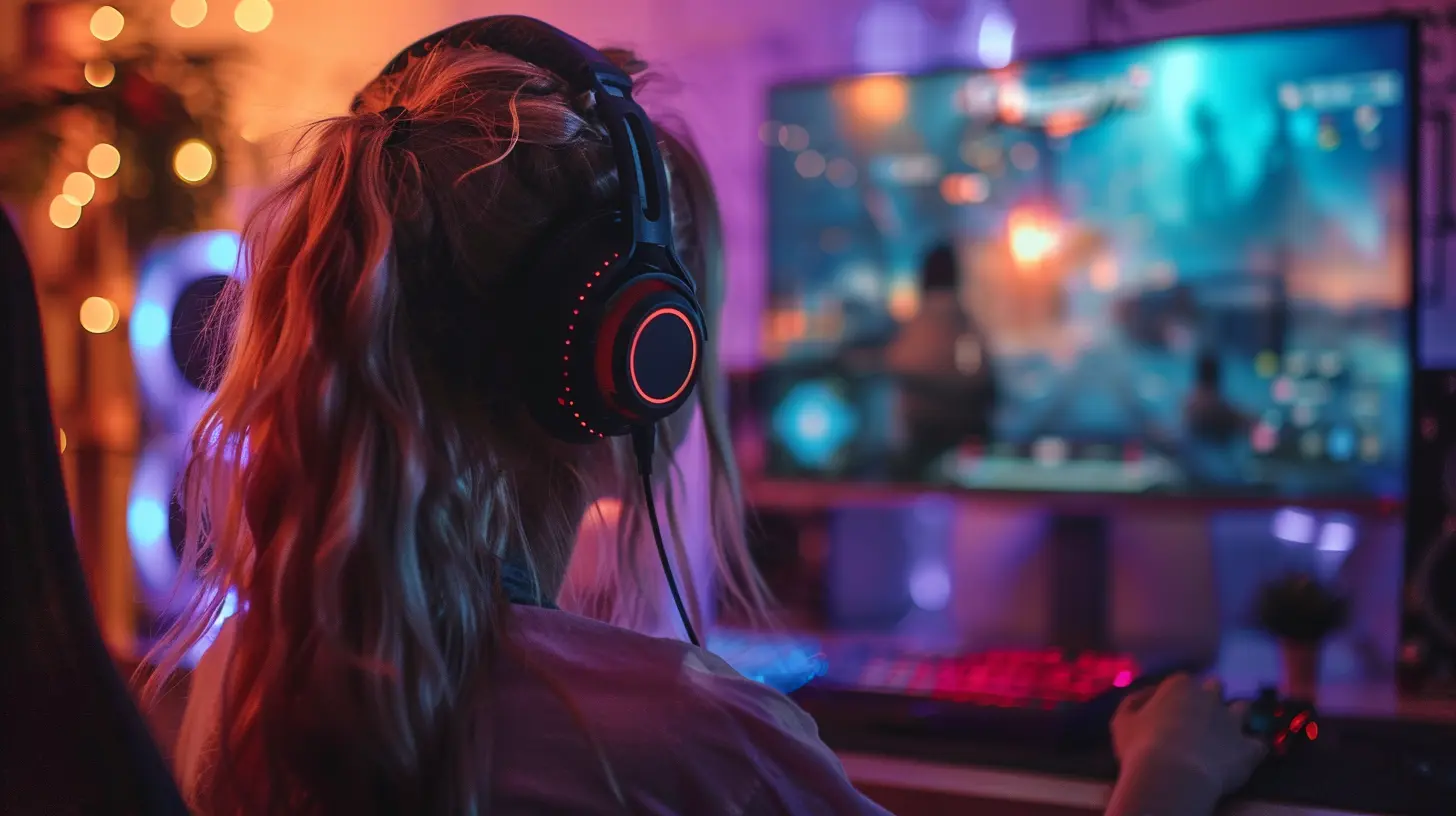
? Step Three: Troubleshoot Like a Pro
Okay, time to roll up our sleeves. Let’s go over some of the most common issues and how to fix them on the fly.? Problem #1: Your Mic Isn’t Working
First, check if your mic is muted in OBS or Streamlabs. Then:- Head into your audio settings and make sure your mic is properly selected
- Test it in another app (like Discord) to see if it’s a hardware issue
- Unplug and replug it in, or try a different USB port
Still nothing? Switch to your headset mic temporarily. Not ideal, but it works in a pinch.
? Problem #2: Dropping Frames Like Crazy
This one stings. Dropped frames are usually a sign of bad internet or a PC that’s struggling.Try this:
- Lower your stream bitrate (start at 2500 kbps if you're having trouble)
- Switch to a wired Ethernet connection if you’re on Wi-Fi
- Close any background apps hogging bandwidth (like auto-updates or cloud syncs)
Also, look at your CPU usage. Too high? Try downscaling your output resolution (from 1080p to 720p, for example).
? Problem #3: Game Crashes or Lags Badly
Ugh, the worst. First, make sure your graphics drivers are up to date. Then:- Try running your game in windowed mode
- Turn off graphics-heavy filters or overlays in your streaming software
- Reduce in-game graphics settings if your PC is choking
Need to fix it mid-stream? Apologize, switch to a different game, or even pivot into a “Just Chatting” stream—your community’s there for you, not just the game.
? Problem #4: Webcam Doesn’t Work
If your webcam isn’t showing up:- Make sure it’s not being used by another app (Zoom, anyone?)
- Check OBS’s video source settings and re-add the camera
- Unplug/replug or reboot your PC if all else fails
Webcams are finicky little beasts. But usually, a quick re-add fixes glitches.
? Step Four: Keep a Tech Troubleshooting Toolkit
Want to be ultra-prepared? Create a little “stream survival kit” with these essentials:- Notepad with your stream settings (bitrate, resolution, etc.)
- OBS/Streamlabs backup scenes
- Quick links to driver updates
- A cheat sheet of hotkeys and audio settings
- Links to streaming forums and Discord communities for help
It's like having a first-aid kit nearby. When chaos hits, you’ll thank yourself.
? Step Five: Learn, Adapt, and Level Up
Every issue you fix is a step toward becoming an even better streamer. Keep track of what went wrong and what solved it. That way, next time that same issue pops up, you’re not scrambling.?️ Create a Troubleshooting Log
It doesn’t have to be fancy—just a Google Doc or journal where you jot down:- Date of the issue
- What went wrong
- What you tried
- What worked
Over time, this becomes your personal tech wizard spellbook.?
? Level Up With Tutorials
Make it a habit to watch YouTube or Twitch creator tips when you’re not streaming. There are tons of great videos that dive deep into streaming setup, audio mastering, and PC optimization.? Bonus Tips from Streamer Veterans
Want that extra edge? Here are a few pro tips from seasoned streamers:- ? Always run OBS as administrator to avoid permission-related bugs
- ? Use a second PC or device for monitoring your stream/chat
- ? Regularly clean up your PC, delete unused scenes, and update sources
- ? Join streaming community forums or streamer discords—you’ll learn fast from others' mistakes
? Mindset Matters: Treat Tech Issues as Content Opportunities
Here’s a mindset twist—what if tech fails aren’t roadblocks, but content fuel?Streaming is raw and real. Your community doesn’t expect perfect production; they want YOU. If you can laugh through your mic breaking or troubleshoot while chatting with chat, it turns into a fun, spontaneous moment. You’re showing off your resilience and problem-solving skills live.
Plus, when other streamers or viewers face those same issues, who do they turn to? Yep—YOU.
? Final Thoughts
Handling technical issues like a pro isn’t about never having problems. It’s about rolling with the punches and staying cool under pressure. With the right prep, a bit of humor, and a solid recovery plan, you can turn even the messiest stream into a memorable one.So next time your audio cuts out or your game crashes, take a deep breath and say:
> “Alright tech gremlins, let’s do this.”
Stay calm. Stay smooth. Keep streaming.
all images in this post were generated using AI tools
Category:
Livestreaming GamesAuthor:

Kaitlyn Pace
Discussion
rate this article
1 comments
Falkor McLemore
When tech goes wild, embrace the chaos... or not!
July 26, 2026 at 4:56 AM
Kaitlyn Pace
Tech can be unpredictable, but staying calm and adapting quickly makes all the difference. Embrace the challenge!